Sign in for the first time
- Open admin.suckerpunchent.com/admin.
- Enter your work email, bbutler@suckerpunchent.com, and click Continue.
- The first time only, the page says “Set up your sign-in”. That’s expected: continue with the same email.
- Check your inbox for a 6-digit code and type it in.
- You’re in. Bookmark the page.
Next time it’s the same: email, then a fresh code. To sign out, click your picture at the top right, then Sign out.
If you see “This account doesn’t have access”, you signed in with an email that isn’t on the Users list. Sign out and use your work email.
Find and edit an athlete
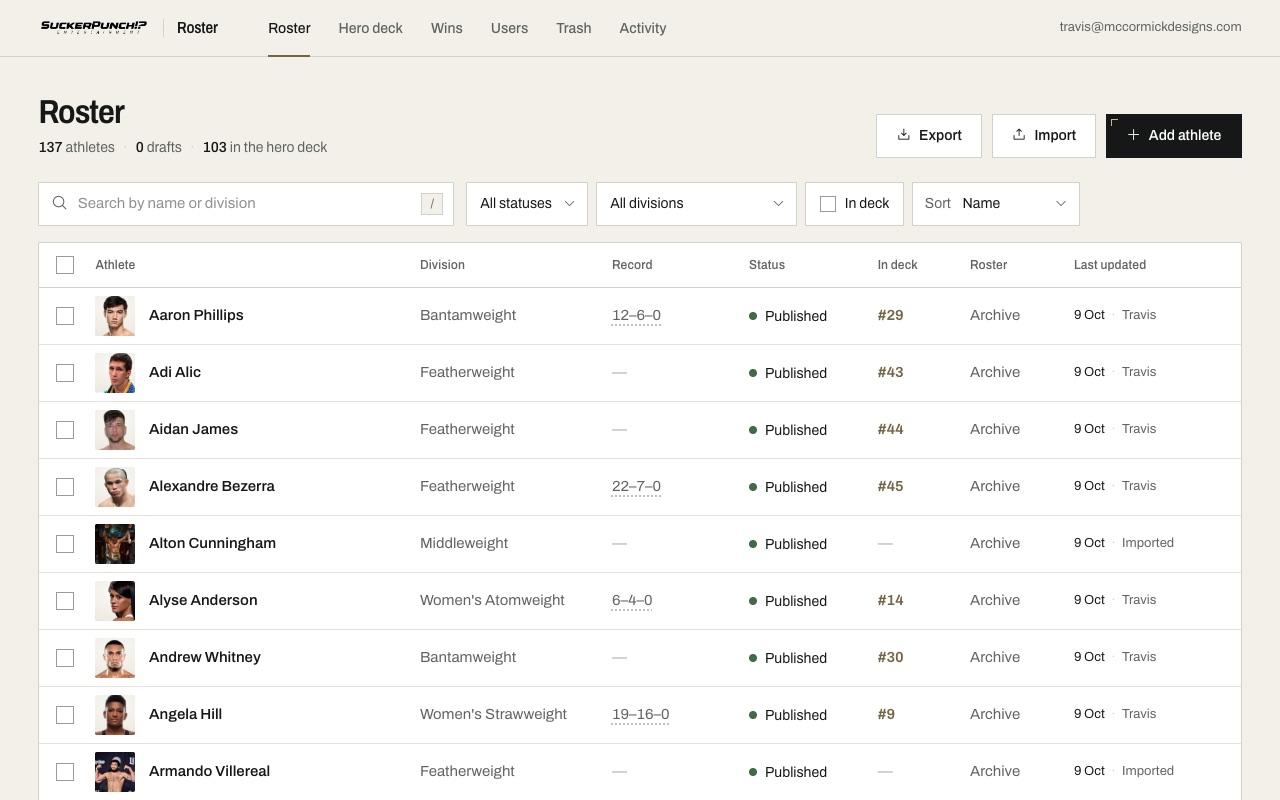
- Click Roster at the top. Every athlete is listed with their division, record, status and place in the deck. The tick boxes on the left are for changing many at once (section 6).
- Type a name or division in the search box. The menus next to it show only drafts, one division, or only the athletes in the deck.
- Click a name to open their page.
- Change what you need. Each field has a short note under it explaining what it does.
- Click Save at the top right. “Unsaved changes” shows until you do, and the admin asks before you leave a page with changes that aren’t saved.
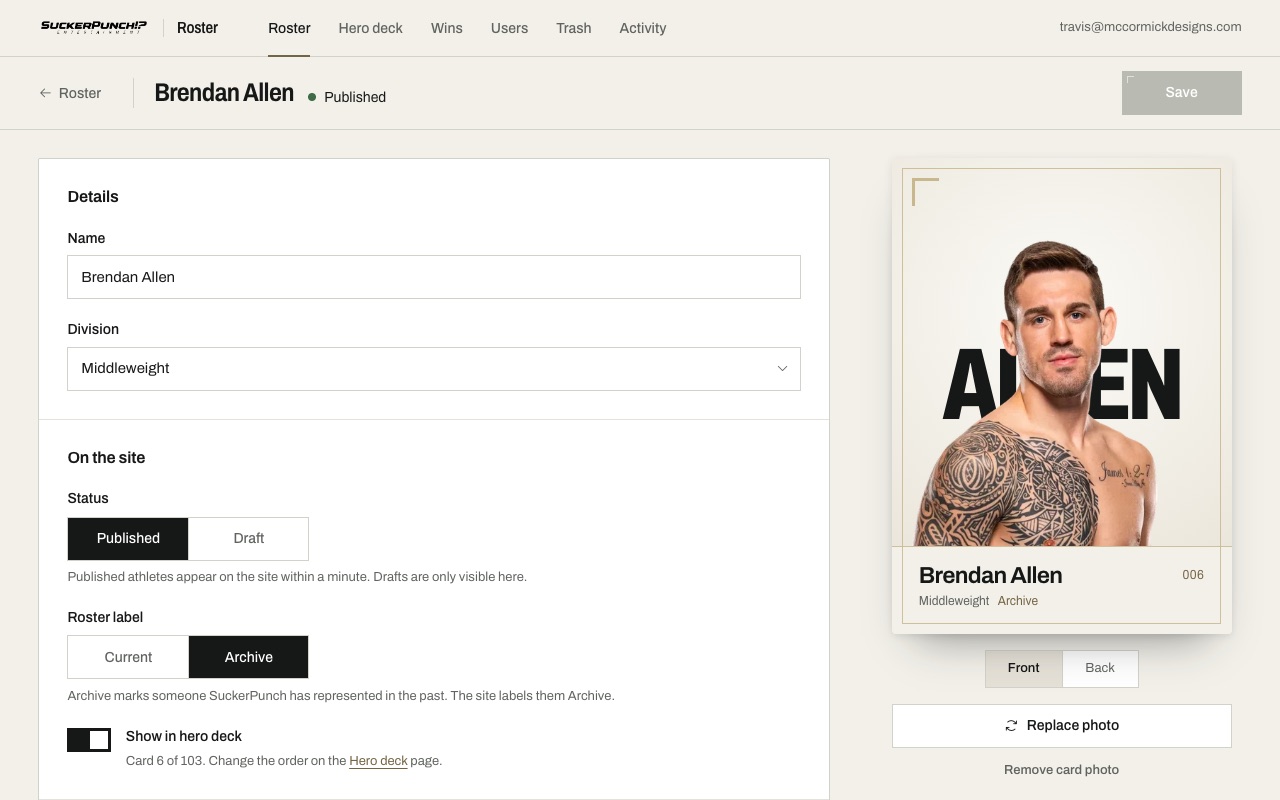
Click Back under the card to see its back. The Title line field prints there under “Title history”. Only add titles you’ve checked, and word them as history.
Internal notes are only for the team. They never appear on the site.
Add a new athlete: Roster → Add athlete. Enter their name and division, add a card photo (next section), then Save. New athletes start as drafts, so nobody sees them until you publish.
The card photo
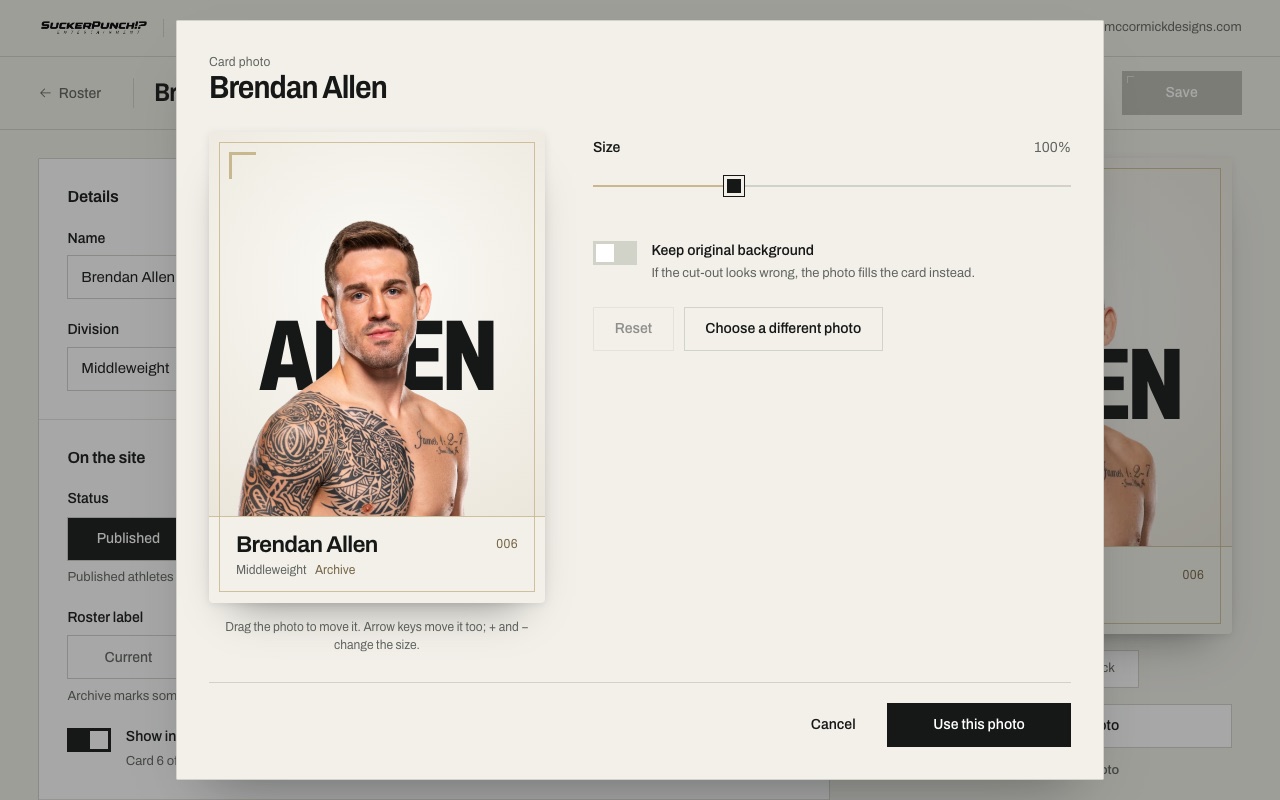
- On the athlete’s page, click Add photo (or Replace photo) under the card.
- Click Choose a photo and pick a sharp photo, waist up, facing the camera. You can also drag a photo onto the card, or click Use the current profile photo.
- The admin removes the background and lines up the face so the card matches the others. The first time on a new computer or phone this takes a few seconds longer while the photo tools load.
- Drag the photo to move it, and use Size to make it bigger or smaller. If the cut-out looks wrong, switch on Keep original background.
- Click Use this photo, then Save on the athlete’s page. Nothing changes on the site until you save.
Cancel leaves the card as it was.
Feature photo (further down the athlete’s page) is different: a wide landscape photo for the top of their profile page. Click Add a wide photo and pick one at least 2400 pixels wide if you can.
Draft or published
- Published athletes appear on the site about a minute after you save.
- Drafts are only visible in the admin. Switching a published athlete to Draft takes them off the site within about a minute.
- Roster label: Current for athletes you represent now, Archive for people SuckerPunch has represented in the past. Archive athletes are labelled Archive on the site.
- Show in hero deck puts their card at the end of the deck on the homepage. They need a card photo first.
Remove, Undo and the Trash
- On the athlete’s page, open Advanced at the bottom and click Remove athlete. They leave the site and the deck and go to the Trash.
- Made a mistake? Click Undo in the message at the bottom of the screen. They come back exactly as they were, in the same place in the deck.
- Later on, open Trash and click Restore. They come back as a draft: switch them to Published (and switch Show in hero deck back on) when you want them on the site again.
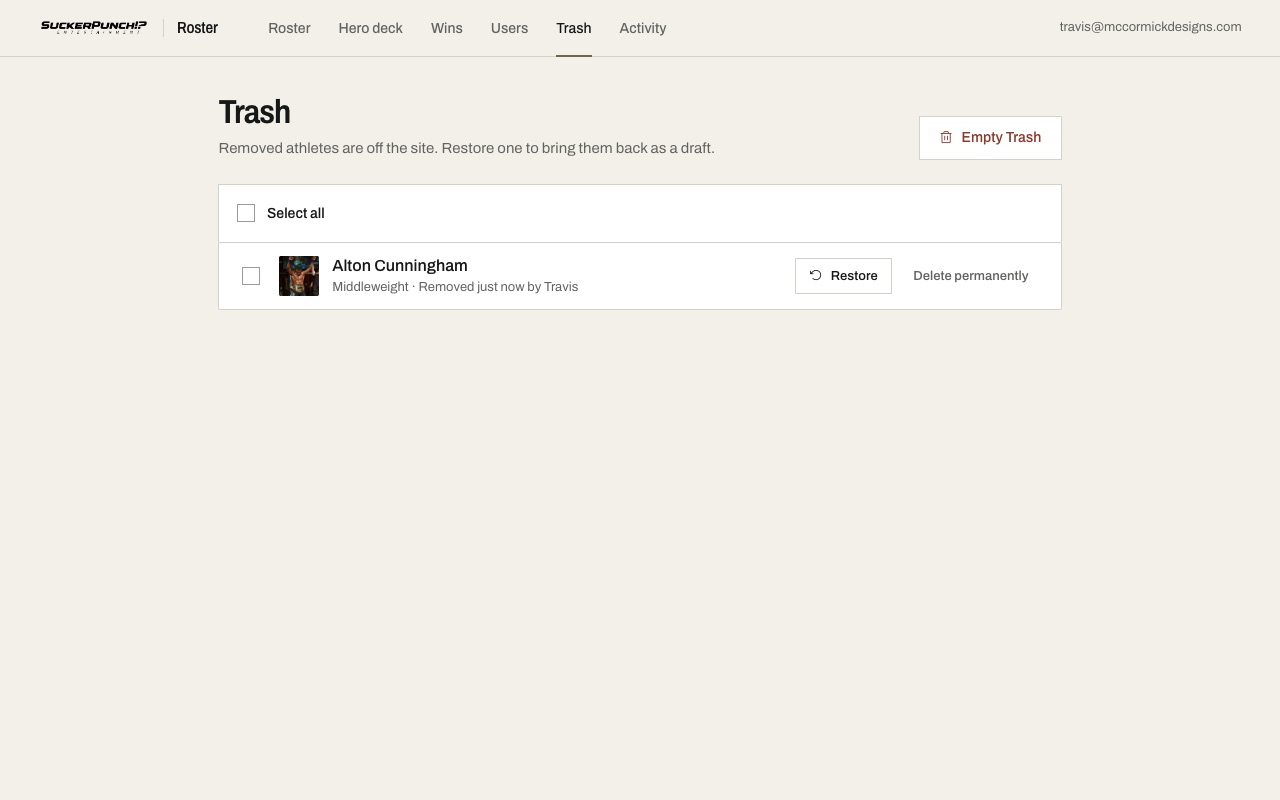
Delete permanently removes an athlete and their photos for good. It can’t be undone, so only owners see it.
Several athletes in the Trash at once
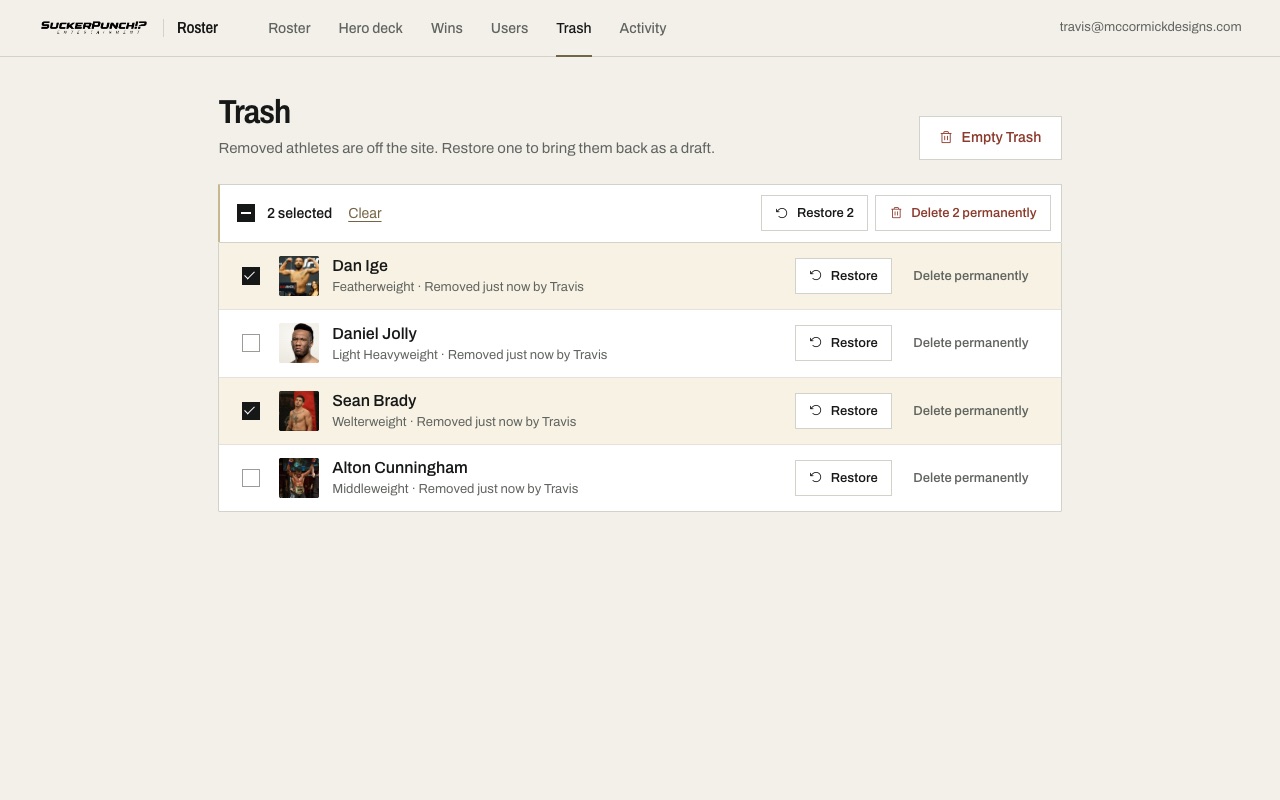
- Open Trash and tick the box next to each athlete, or Select all at the top. Shift-click a second box to tick everyone in between.
- Click Restore. You see the list first, then confirm. They come back as drafts, outside the hero deck. Undo sends them back to the Trash.
- Owners also see Delete permanently. Because it can’t be undone, you type the number of athletes (or the word DELETE) before the button works.
Empty Trash (top right, owners only) deletes everyone in the Trash for good, after the same check.
Change many athletes at once
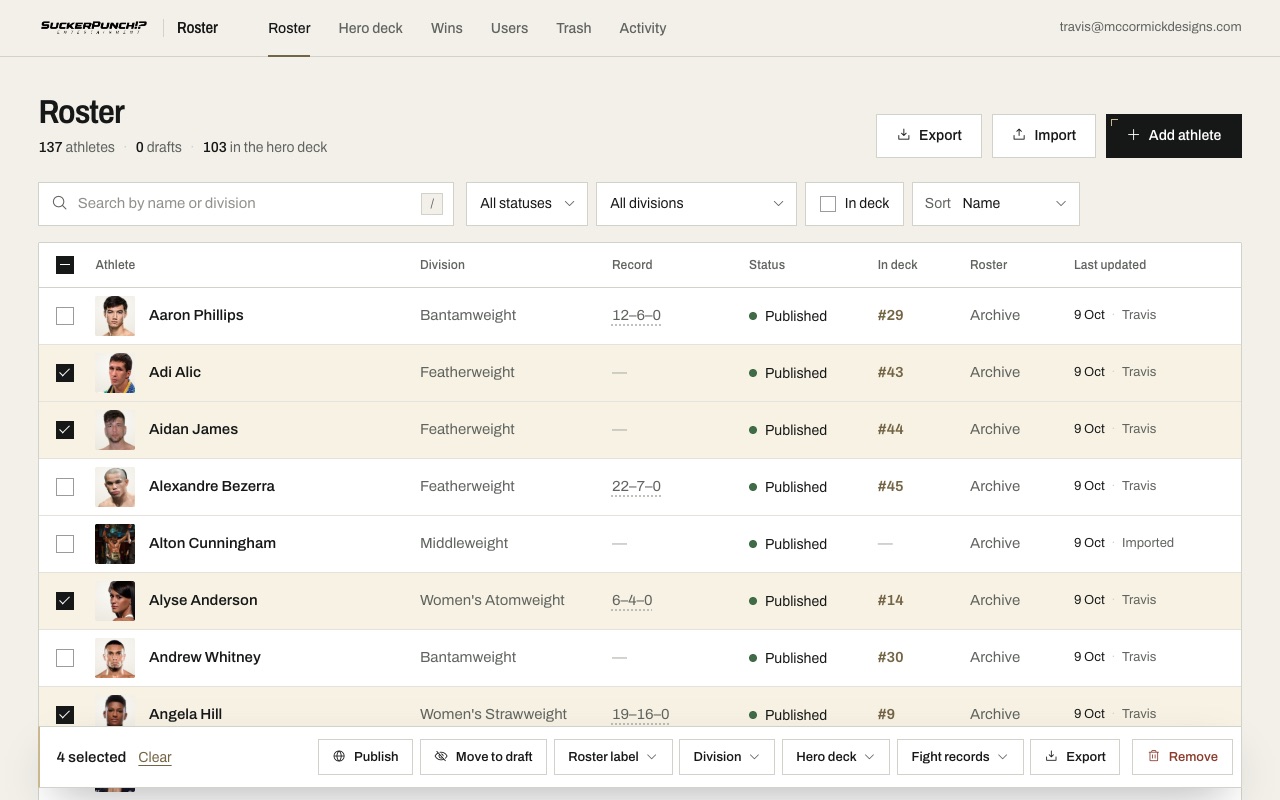
- On Roster, tick the box next to each athlete you want to change. Shift-click a second box to tick everyone in between. The box at the top ticks everyone shown: choose a division first, then tick the top box to select that whole division. Ticks stay while you search, so you can search for one name, tick it, then search for the next. Clear (or Esc) unticks them all.
- In the bar at the bottom, choose what to do:
- Publish or Move to draft
- Roster label: Current or Archive
- Division
- Hero deck: add them to the end of the deck, or take them out (only athletes with a card photo can go in)
- Fight records: sync from Wikipedia now, or confirm their automatic Wikipedia matches after checking each one
- Export: a spreadsheet of just these athletes
- Remove: move them to the Trash
- When more than one athlete would change, and always for Remove, you first see who changes. Anyone ticked but hidden by your search is marked “Not shown by your search and filters”. Nothing happens until you click the button at the bottom, for example Move 3 to Trash.
- A message then says what changed, with Undo. While it shows, Cmd+Z on a Mac (Ctrl+Z on Windows) undoes the newest change.
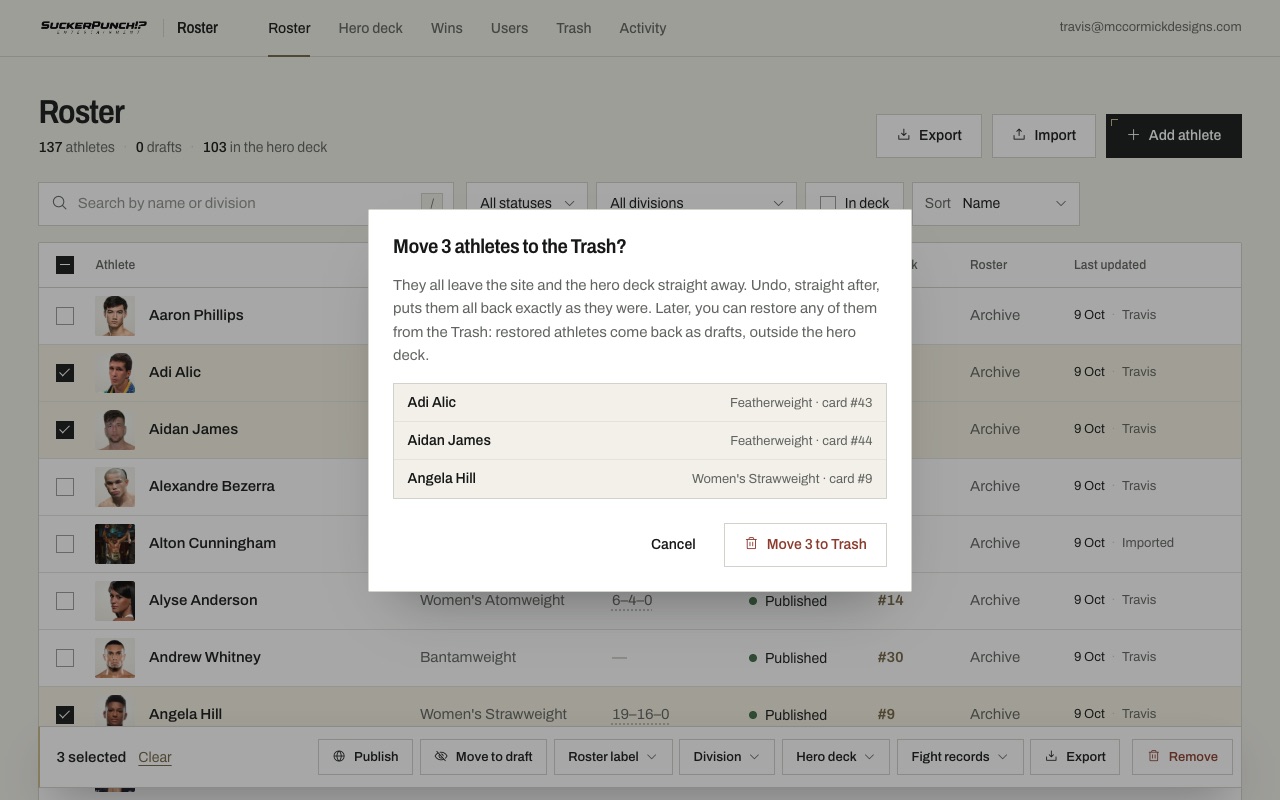
Undo puts those athletes back exactly as they were, including their places in the hero deck. If someone edited one of them in the meantime, it tells you who and changes nothing. Syncing records has no Undo: it only adds fights from Wikipedia.
Athletes you bring back from the Trash later come back as drafts, outside the hero deck. To put them back exactly as they were, use Undo straight after removing them.
Spreadsheets: export and import
Download the roster as a spreadsheet. Owners can change many athletes at once by editing that spreadsheet and importing it again.
Export
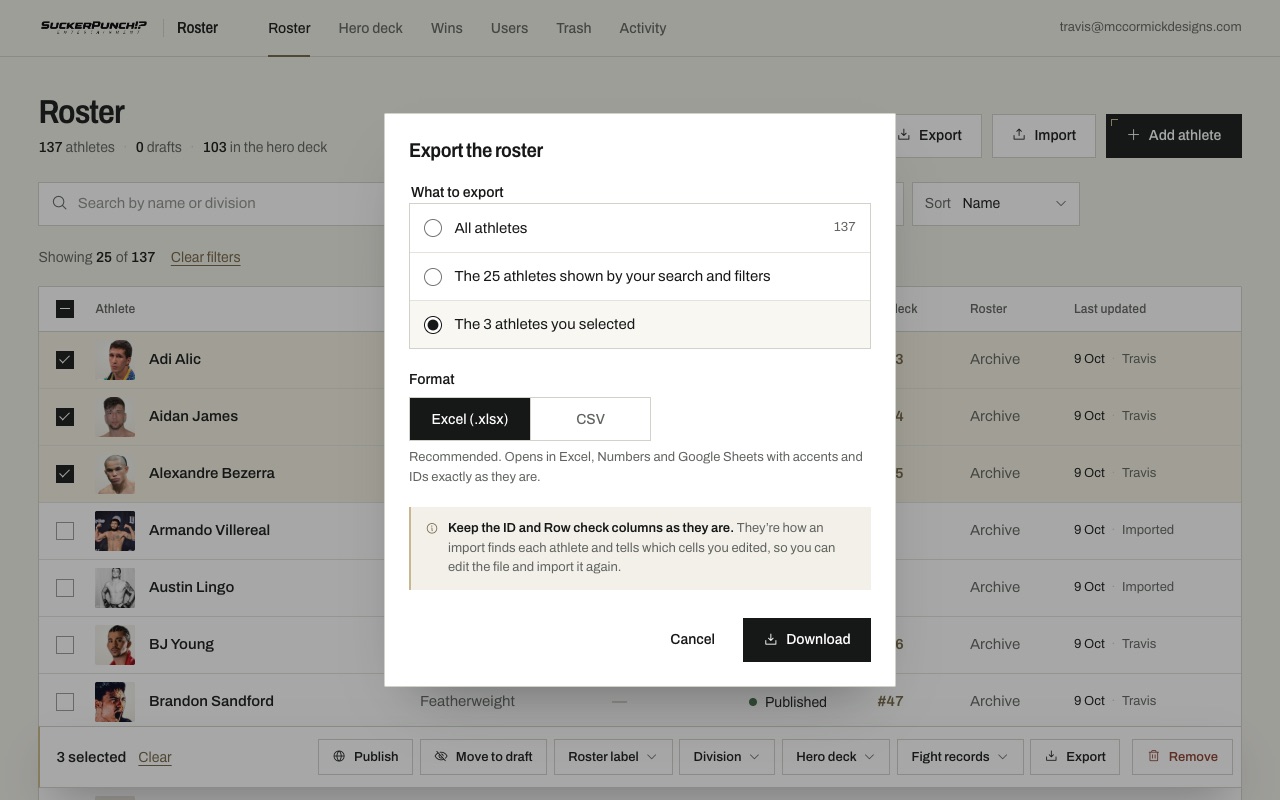
- On Roster, click Export at the top right (or Export in the bar when athletes are ticked).
- Choose what to export: all athletes, the ones your search and filters show, or the ones you ticked.
- Choose Excel (.xlsx) (recommended) or CSV, and click Download. The file goes to your Downloads folder.
Edit it in Excel
- Open the file in Excel, Numbers or Google Sheets and change the cells you want.
- Leave the ID and Row check columns as they are. The ID is how the import knows who is who (it never goes by name), and Row check tells it which cells you changed.
- To add someone new, fill in an empty row at the bottom with at least Name and Division, and leave the ID empty. Don’t copy an existing row: a copied row keeps the ID, and then neither row is imported.
- Save it as Excel (.xlsx) or CSV.
Import (owners)
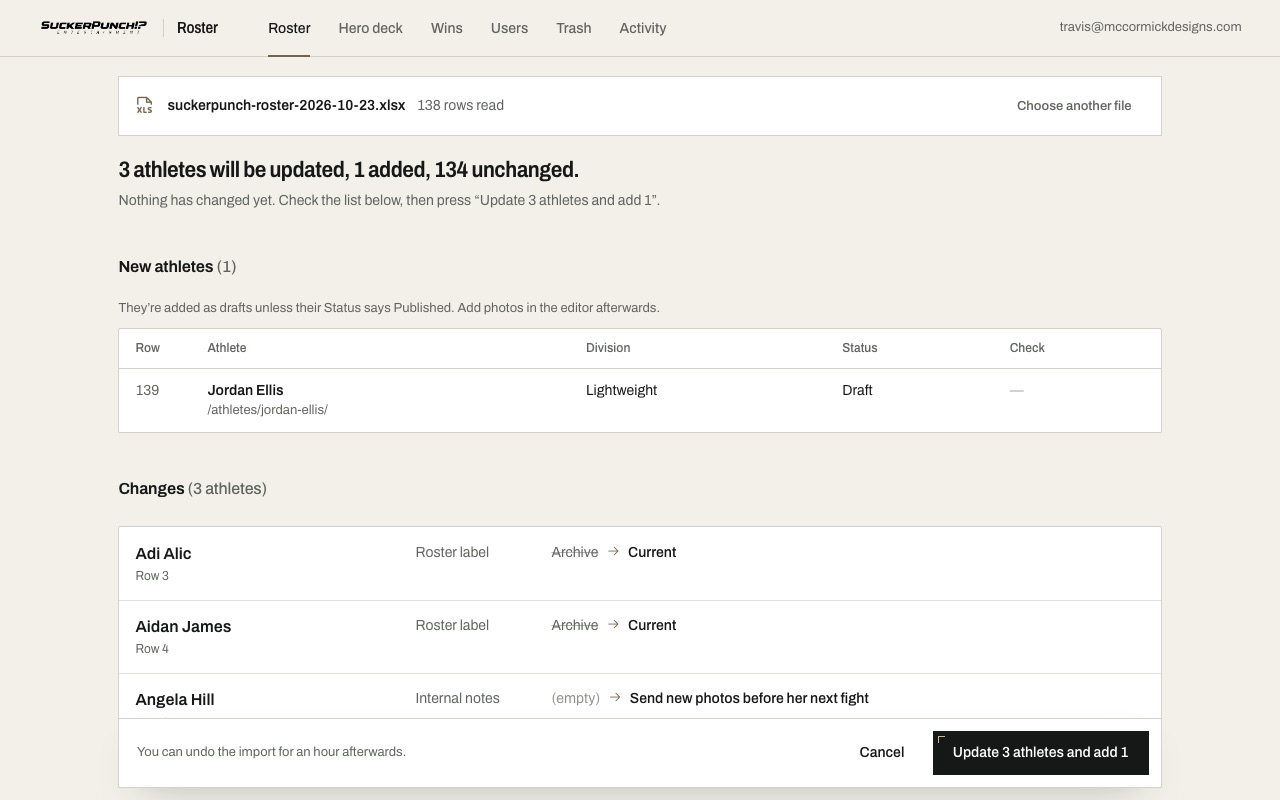
- On Roster, click Import.
- Drop the file onto the page, or click Choose a file. Nothing changes yet.
- Check the review: how many athletes will be updated, any new athletes, every change (old value, then new value), and any rows with problems. Rows with problems are left out, and the review says why.
- Click the button at the bottom, for example Update 3 athletes and add 1. Changes show on the site within about a minute.
Undo an import: for an hour afterwards, Undo this import is on the results page, on the Import page and on the import’s line in Activity (on the computer you imported from). It puts back everything the import changed and removes the athletes it added. If someone has edited those athletes since, it tells you who and changes nothing.
| An import can change | It can’t change |
|---|---|
| Name, Web address, Division, Status, Roster label, Title line, Internal notes, Tapology page | Photos, the hero deck, fight records and Wikipedia links. Those columns are for reference only. Use the athlete’s page and Hero deck for them. |
Good to know
- Export first, then edit that file. Every athlete in it already has the right ID and Row check.
- Only the cells you changed are imported. If someone changed an athlete in the admin after you exported, their newer values are kept. If you both changed the same cell, the review points it out and leaves it out unless you tick Use the file’s value anyway.
- An empty Title line, Internal notes or Tapology page cell clears it. An empty Name, Web address, Division, Status or Roster label cell leaves it as it is.
- New athletes start as drafts unless their Status says Published. A new row with the same name as someone already on the roster is left out unless you tick Add anyway.
- Adding several new athletes from scratch? Download a template on the Import page has the same columns and an example row.
The hero deck
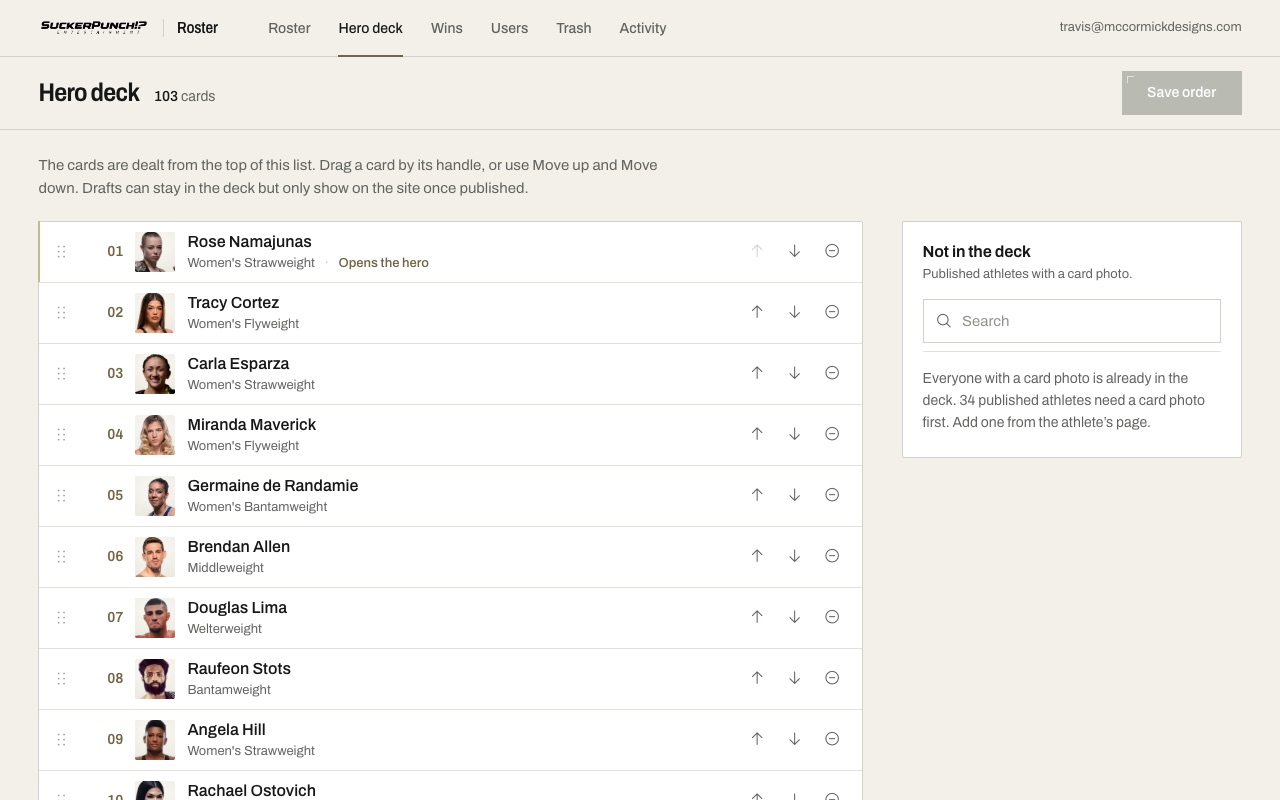
- Click Hero deck.
- Drag a card by the dots on its left, or use the up and down arrows.
- To take a card out, click the minus on its row. To add one, find the athlete under Not in the deck on the right and click Add. Only published athletes with a card photo are listed there.
- Click Save order. Discard puts everything back as it was.
Fight records and wins
What happens on its own
- Each athlete linked to their Wikipedia page has their record kept up to date. The admin checks early every morning and adds any new fights.
- A new win shows on the Wins page with a New tag and two graphics ready to download: a post (1080 × 1350, for the feed) and a story (1080 × 1920). Nothing is posted for you.
- The record shows on the athlete’s page on the site once someone has confirmed their Wikipedia match.
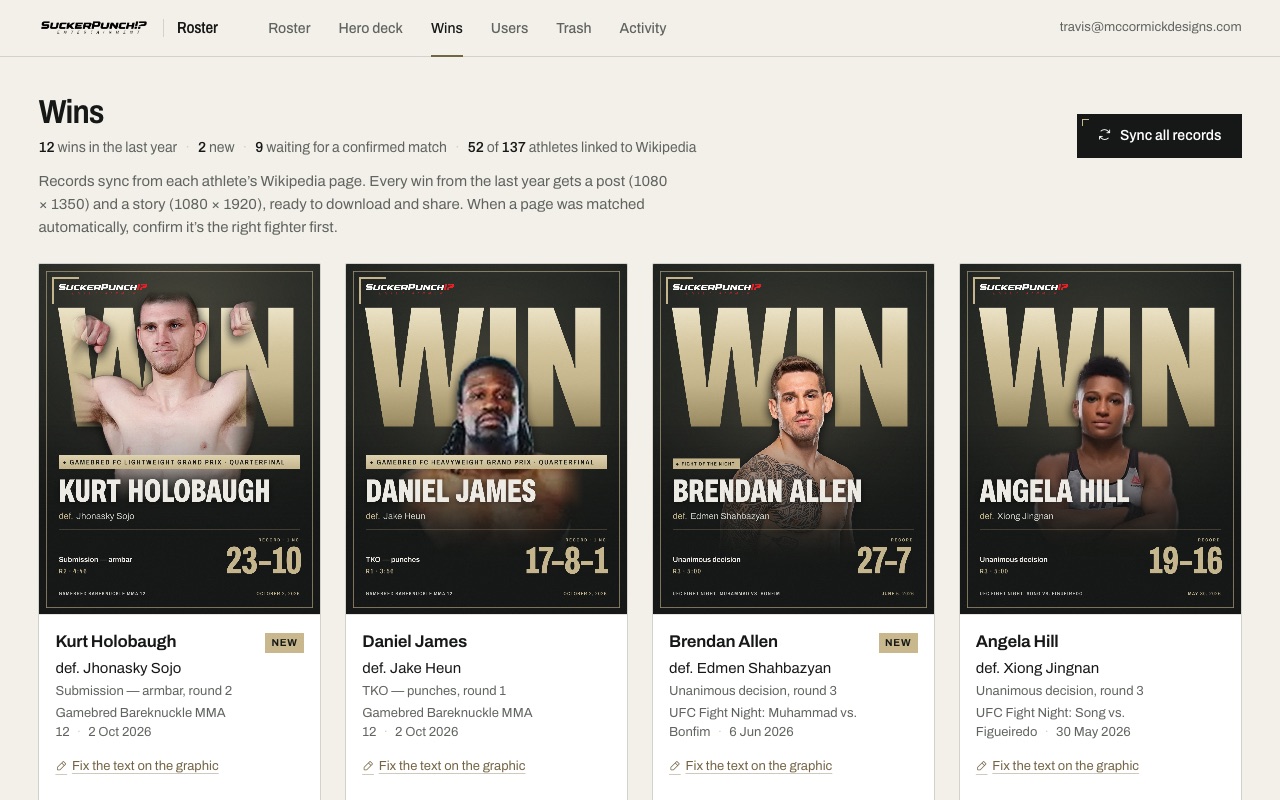
Download a win graphic
- Click Wins.
- If a win says Check the match before posting, click Open on Wikipedia to check it’s the right fighter, then Confirm match.
- Click Post or Story to download the picture, ready to share.
Sync all records at the top checks every linked athlete now instead of waiting for the morning.
Link an athlete to Wikipedia
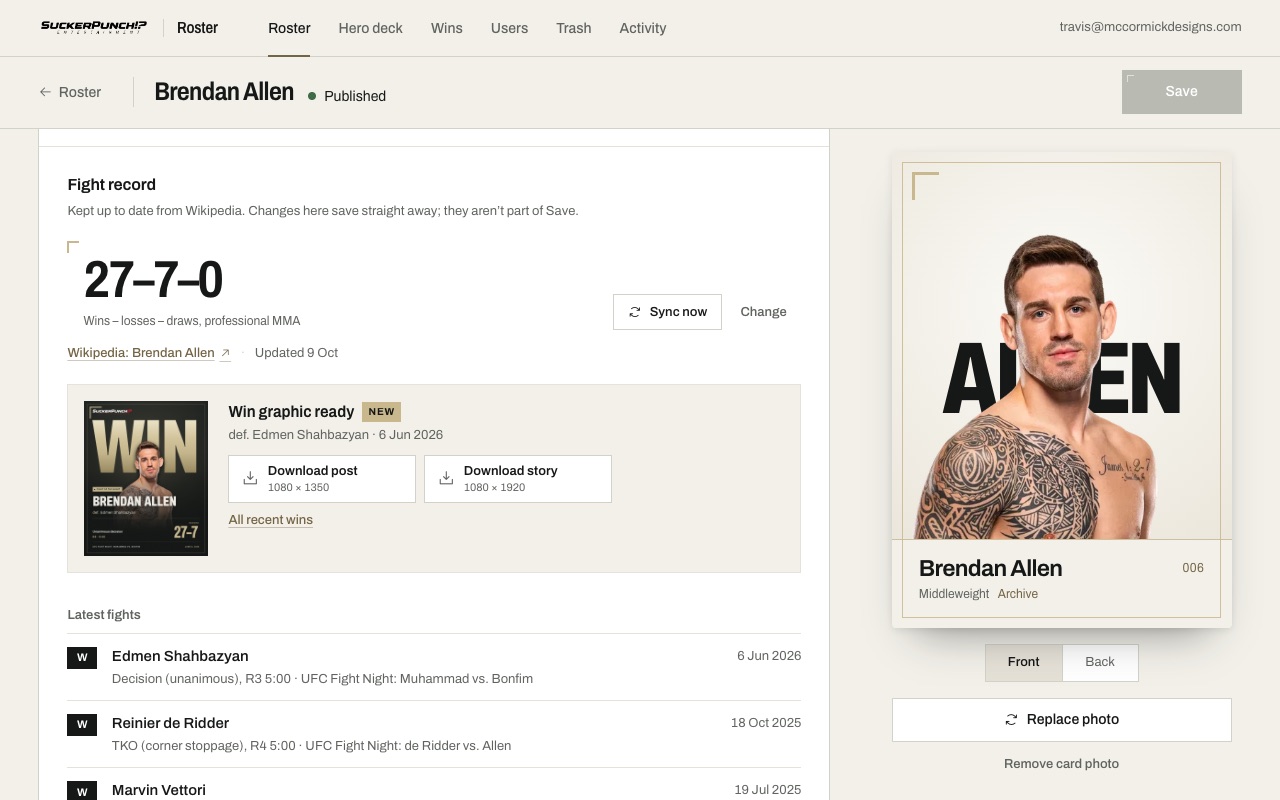
- On the athlete’s page, scroll to Fight record and click Find on Wikipedia.
- Pick the page marked Has a fight record and Name matches, and click Use this. Not sure it’s them? Click Open on Wikipedia to check first.
- Their record comes in straight away. Sync now fetches the latest at any time.
If a record says Auto-matched, the admin found the page by itself. Check it’s the right fighter, then click Confirm. Until then the record stays off the site and its win graphics can’t be downloaded. Changes in the Fight record section save straight away.
Fix the text on a graphic
- On the win, click Fix the text on the graphic.
- Change the opponent, the method or the event, then click Save. The graphic updates.
- To go back to what Wikipedia says, open it again and click Use Wikipedia’s text.
If a win says “Check before posting” and names a word that isn’t a usual fight term, Wikipedia probably has a typo. Fix it here before you post. You can also paste an athlete’s Tapology page on their profile as a handy link for the team; the record itself comes from Wikipedia.
Adding someone to help you
Everything, including adding and removing users, importing spreadsheets and deleting athletes for good from the Trash.
Add, edit and remove athletes (one at a time or many at once), export the roster, arrange the hero deck, sync records and download win graphics.
Not sure? Choose Editor. You can change it later.
- Click Users.
- Under Add a user, enter their email, their name if you like, and pick a role. Click Add user.
- A ready-to-send invitation opens with the sign-in link and the steps. Click Email the invitation to open it in your own email, or Copy message to paste it into a text or WhatsApp. Nothing is sent until you send it.
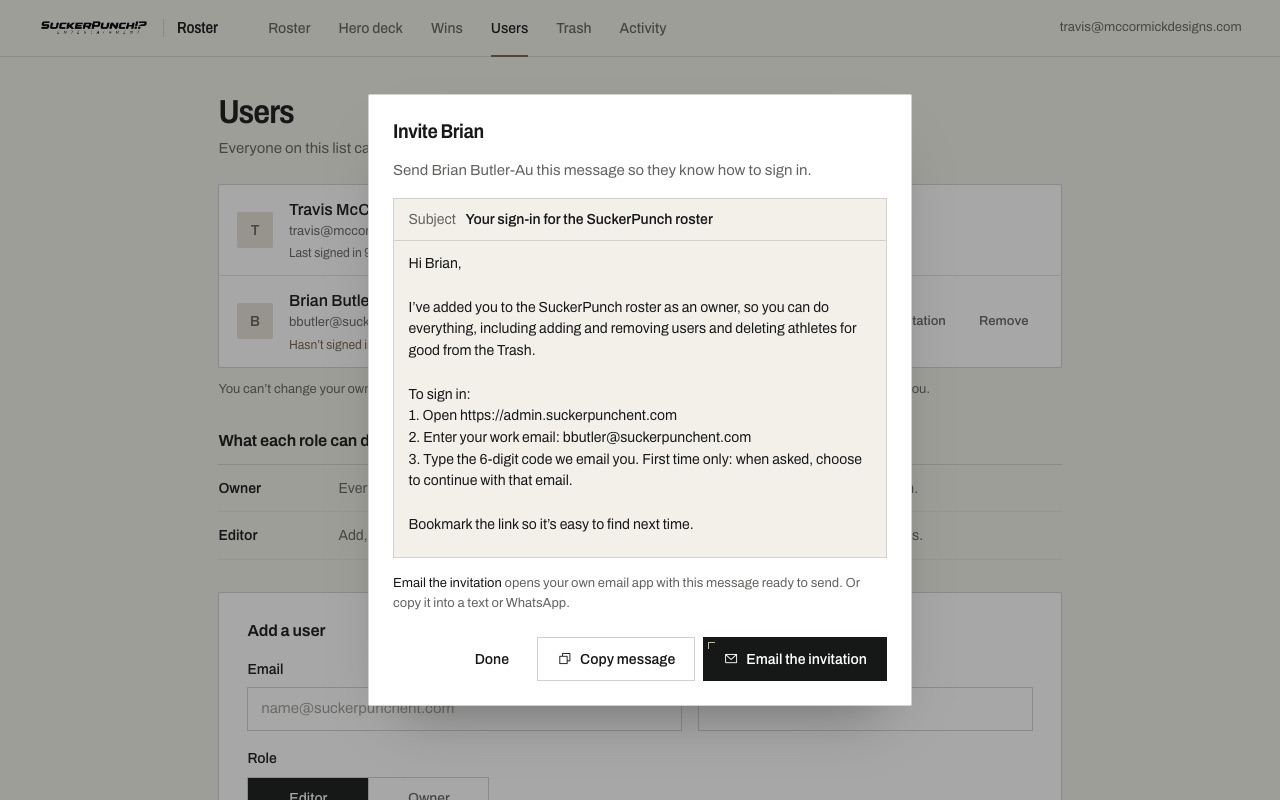
They can sign in as soon as you’ve added them, using the same email address. On their row you can also:
- Send invitation to show the message again, for example if they lost it.
- Change their role with the menu on their row, then confirm.
- Remove them, which stops them signing in. Their past changes stay in Activity.
You can’t change your own role or remove yourself, so you can’t lock yourself out by accident.
Activity
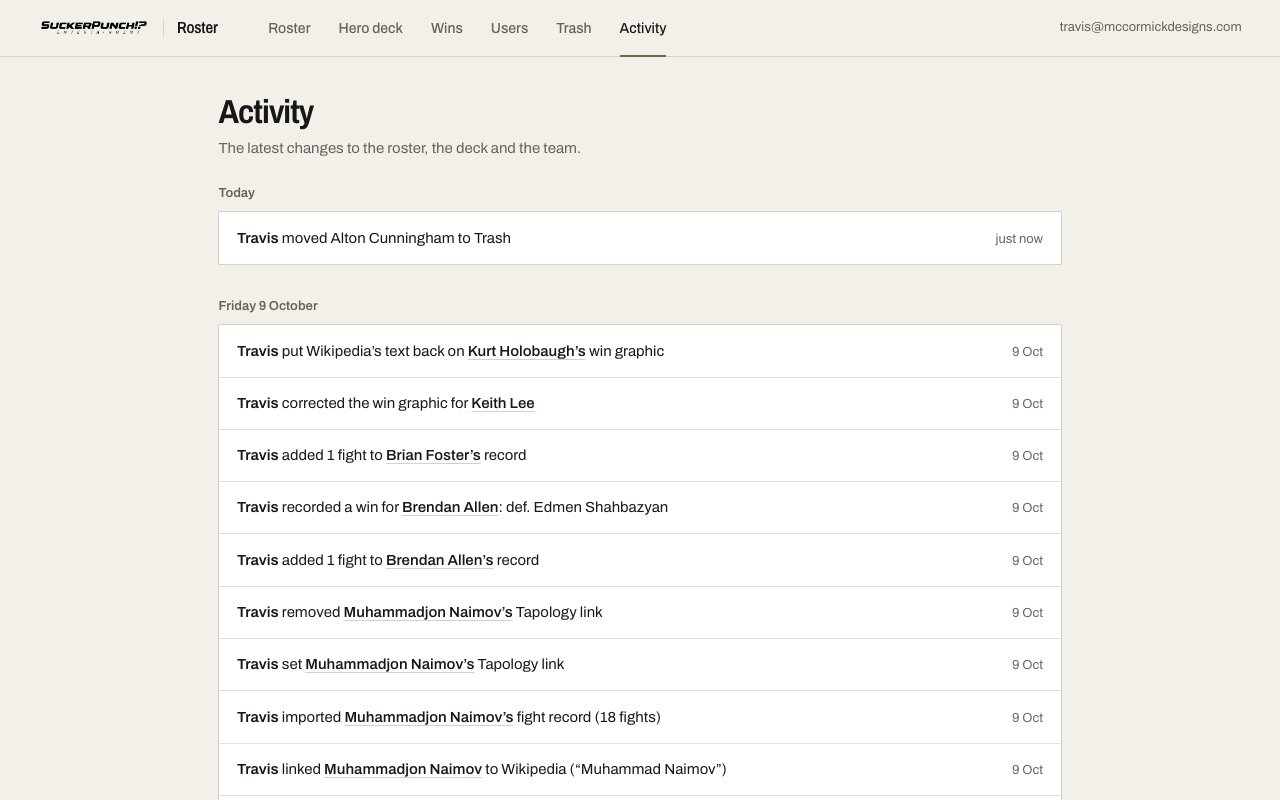
Activity lists every change, newest first. Click an athlete’s name to open them.
A change to many athletes at once is one line, for example “moved 3 athletes (Adi Alic, Aidan James and Angela Hill) to Trash”. An import is one line too: “imported a spreadsheet: 3 updated, 1 added”.
When changes show on the site
| You did this | On the site |
|---|---|
| Saved a published athlete, published someone, saved the deck order, changed many athletes at once, imported a spreadsheet | About a minute later. Refresh the page if you don’t see it yet. |
| Saved a draft | Never, until you publish it. |
| Switched someone to Draft, or removed them (one or many) | Gone within about a minute. |
| A new fight on Wikipedia | The next morning, or straight away with Sync now or Sync all records. |
The admin itself always shows the latest straight away.
Who to call
Travis McCormick · travis@mccormickdesigns.com
It helps to say which athlete or page it was, what you clicked and what you expected to happen. A screenshot is perfect.
If a page ever says “The roster couldn’t be loaded”, nothing has been lost. Wait a minute and click Try again.